
• Features
  • Why FreshPay
  • Pricing
    • All Integrations
    • Mimo
    • PensionSync
    • Quickbooks
    • Xero
    • Telleroo
    • Penfold
    • Nest
    • Modulr
    • How To Guides Step-by-step guides to help you get the most out of FreshPay.
    • Migration Service Switch to FreshPay with a smooth, fully supported migration.
    • Support Sessions Join live support sessions for real-time help from our team.
    • YouTube Channel Watch tutorials, updates and tips on our YouTube channel.
    • FAQs Quick answers to common questions about using FreshPay.
    • Contact Support Get in touch with our team for help, questions or account support.
  • Blog
  • Book Demo
  • Free Trial
Book Demo
Free Trial

Companies

9
  • Adding a Subcontractor 
  • Ceasing a Payrun
  • Deleting a Company
  • Deleting a Payrun
  • Director Payruns
  • Finalising/Reopening a Payrun and HMRC Submission Check
  • How to Assign Someone to a Bureau
  • Adding CIS & Sub-contractors
  • Roll Over to New Tax Year

Company Users

4
  • Adding Additional Rates
  • Creating a New Company: User Guide
  • Viewing, Editing and Adding Assigned Employees
  • To assign/unassign someone to a company 

Employees

12
  • Adding a P45
  • Employee Portal 
  • Adding an Employee
  • Adding and Deleting Holidays
  • Adding and Deleting Maternity Leave
  • Adding and Deleting Paternity Leave 
  • Adding and Deleting Sickness 
  • Adding/Deleting Adoption Leave
  • Adding/Deleting Bereavement Leave
  • Student Loans/Postgraduate Loans
  • Uploading an Employee CSV File
  • Carrying Forward a Tax Refund

Employer Portal

1
  • Employer Portal Invitation

Payroll Reports

1
  • Documents and reports

Pension

1
  • Pension Sync

Integrations

2
  • Integrating FreshPay with Telleroo
  • Connecting Freshpay to Xero
View Categories
  • Home
  • How To Guides
  • Companies
  • Adding CIS & Sub-contractors

Adding CIS & Sub-contractors

Go to the company details >> employer info 
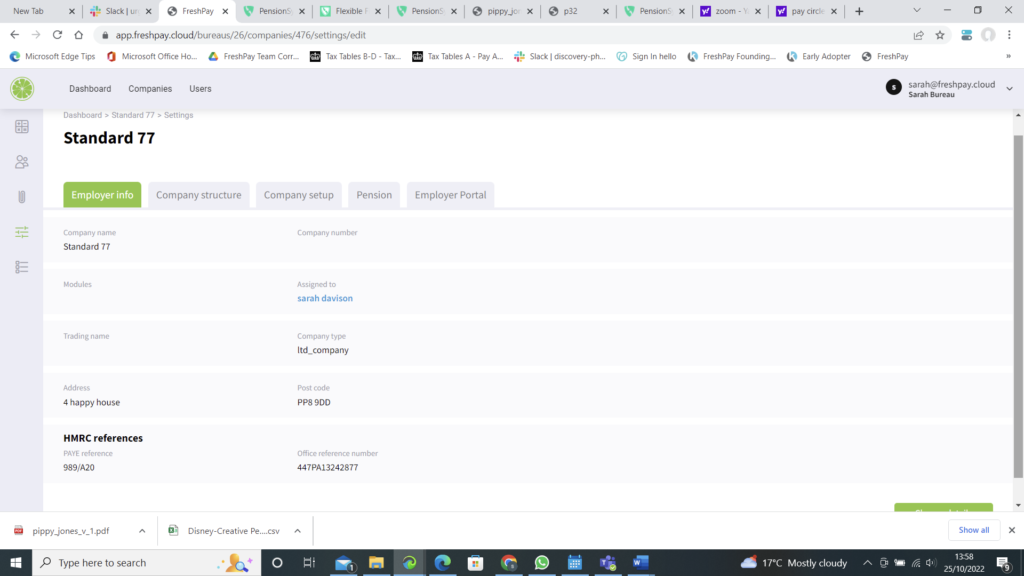
Adding CIS

Change details >> tick yes to CIS >> tick contractor flow and/or subcontractor flow >> enter UTR number >> select month ending for the first CIS >> save 
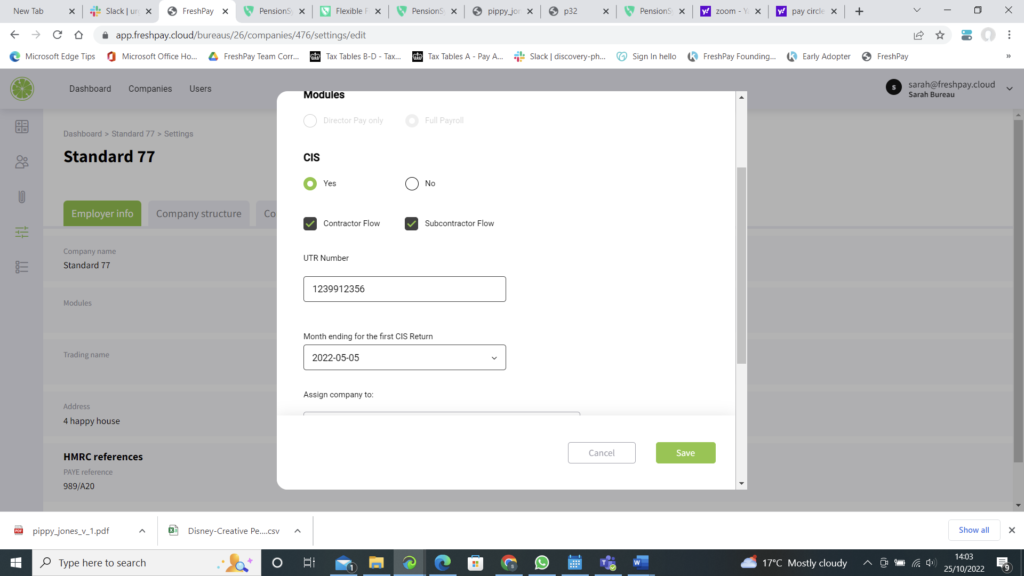
CIS Dialog

If you wish to disable the CIS, go back into employer info >> select no under CIS >> save

CIS suffered to date

You can add CIS suffered to date by going to the payrun summary screen >> click add CIS >> ADD the amounts to the relative months >> save 
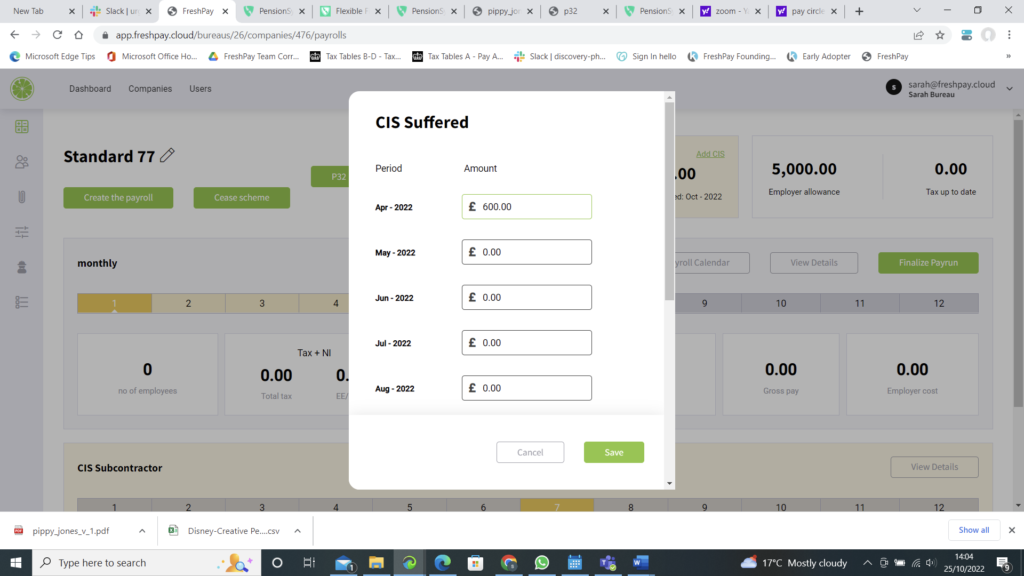
CIS Suffered

To add subcontractors >> click on the little man on the left hand side 
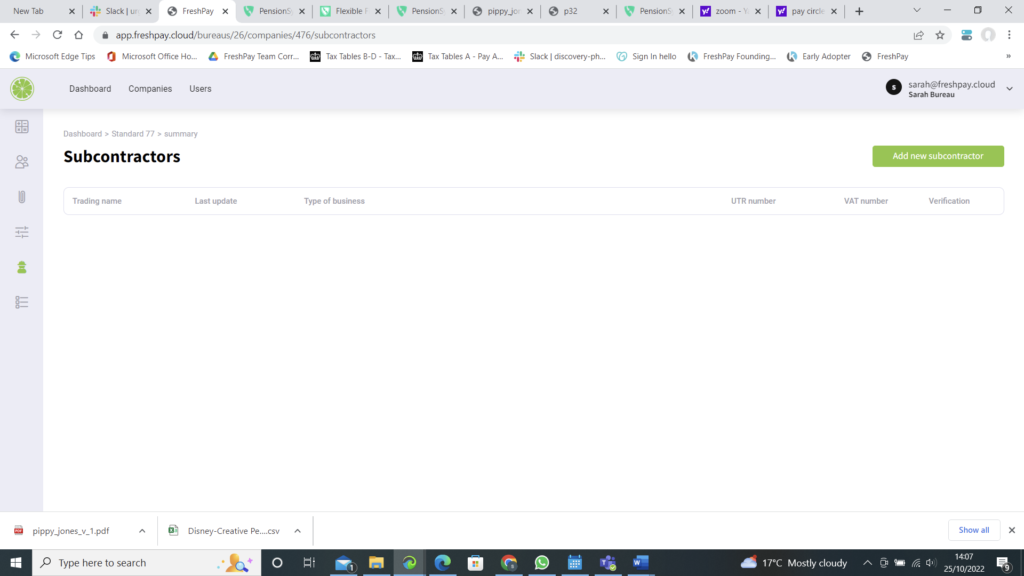
Subcontractors Section

Add all sub-contractor details >> you must add the UTR number and VAT number if they are registered >> save >> you will then have the option to register them on line or select if they are already registered >> and select the deduction rate
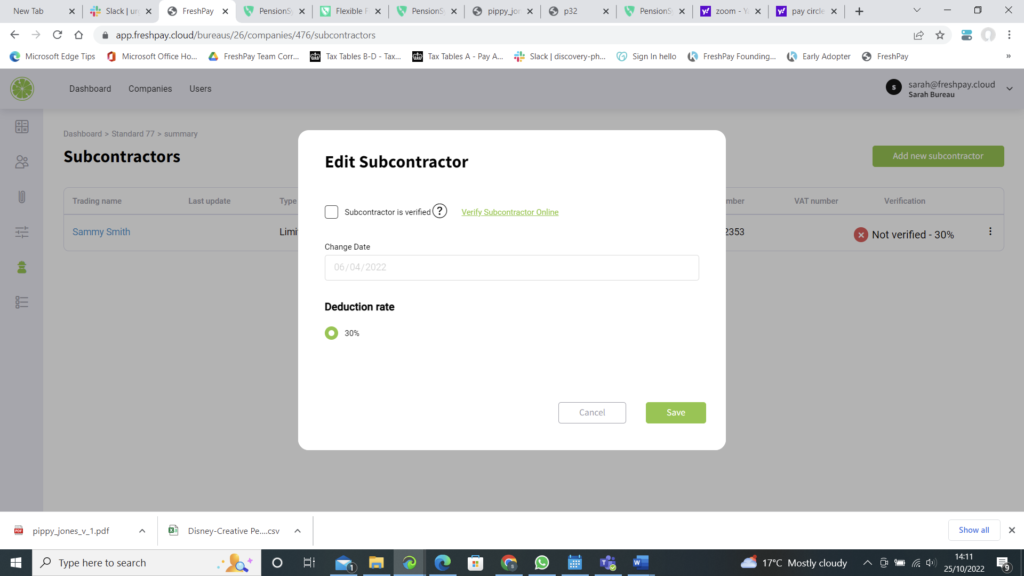
Edit Subcontractor

You can edit these details by selecting the 3 dots on the left-hand side of the screen
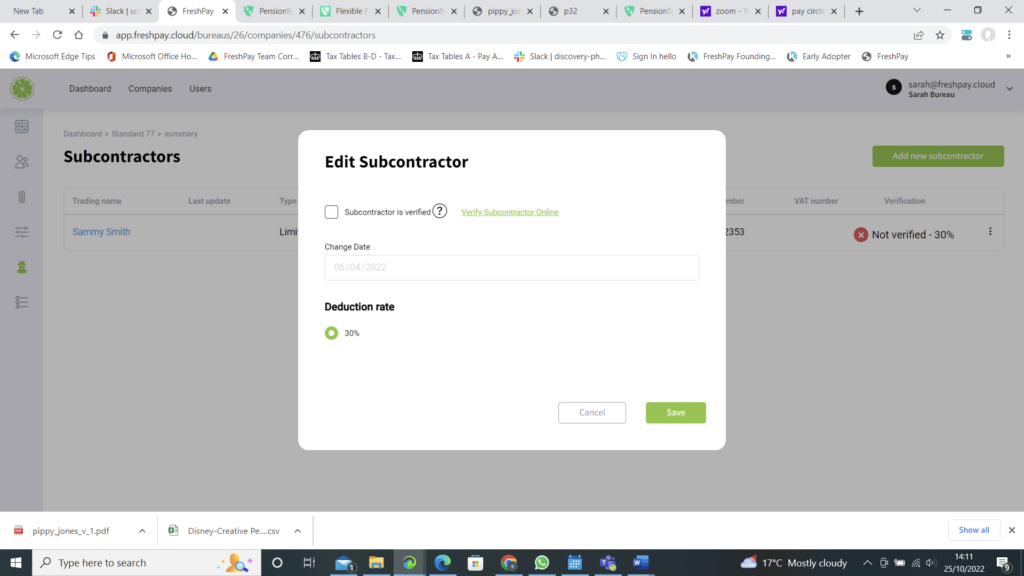
edit subcontractor details

The CIS subcontractor payrun will then appear on the payrun summary screen
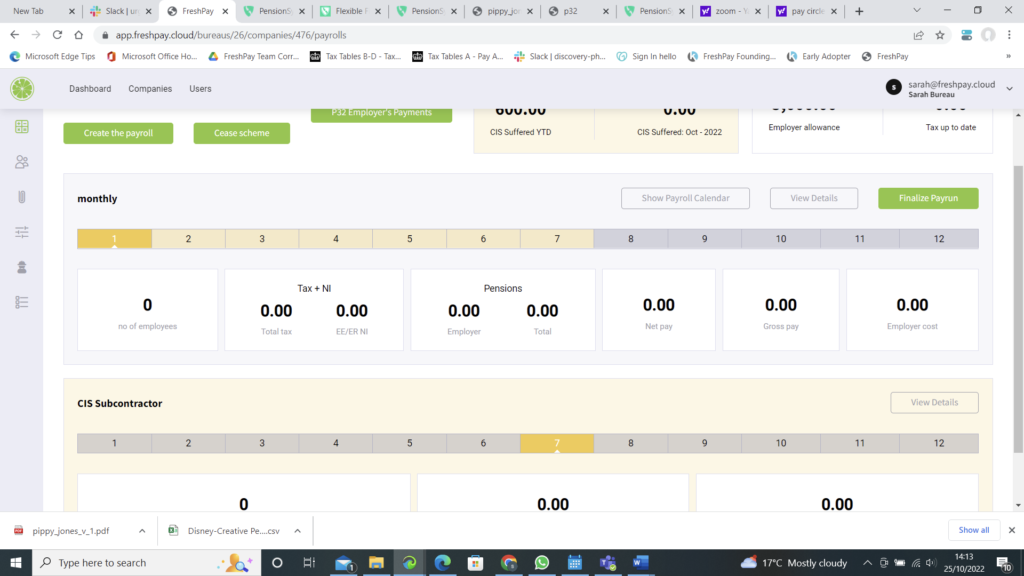
Subcontractor PayRun
Updated on May 3, 2026
How to Assign Someone to a BureauRoll Over to New Tax Year
FreshPay-Logo-Colour-Light-RGB
Get in touch
Phone +44 (0)1403 599 355
Email

hello@freshpay.cloud
support@freshpay.cloud

Address

2 Pondtail Farm, Coolham Road,
West Grinstead, Horsham,
West Sussex RH13 8LN

Product Features Why FreshPay Integrations Pricing Blog Contact
Support How To Guides Migration Service Support Sessions YouTube Channel FAQS
Join the FreshPay community

Be the first to hear about the latest FreshPay updates and improvements.

© 2026 FreshPay Ltd. All Rights Reserved. Website by Space Five
Privacy Policy Term and Conditions